
Email Archival: Email archiving for document management
Keep business correspondence with business records.
Email archiving for document management brings selected employee mailbox content into FineDocs. The Email Archival add-in captures messages and attachment information through configured mailbox rules, giving the organization a repository-based record of relevant correspondence.
Preserve the conversation beyond an individual inbox.
An invoice query, supplier clarification or customer exchange may be important long after the person handling it has moved on. Email Archival connects mailbox content to the document environment. Configuration determines the accounts, folders, date scope and attachment behavior, so the archive can reflect the business requirement rather than treating every mailbox as an unrestricted source.
Email archiving for document management: 6 practical benefits
Configured mailbox collection
Email Archival uses Microsoft Graph to access configured employee mailboxes and mail folders. Tenant permissions and account access are prerequisites for collection.
Folder and date scope
Select the mailbox folders and date or year criteria used for processing. This helps separate the required correspondence from material outside the agreed archive scope.
Message context
Store message identifiers and relevant details such as sender, recipient, subject and date alongside the archived content. Preserve the information needed to understand the correspondence.
Attachment handling
Configure processing for messages with or without attachments and apply the available attachment-size setting. Validate the expected handling of representative attachment types.
Duplicate checks
The service checks message identifiers against stored records during processing. Duplicate handling helps avoid treating a previously archived message as unrelated new correspondence.
Background operation
A background service performs collection according to its configuration, with processing logs and optional confirmation behavior. Operational monitoring remains part of the service setup.
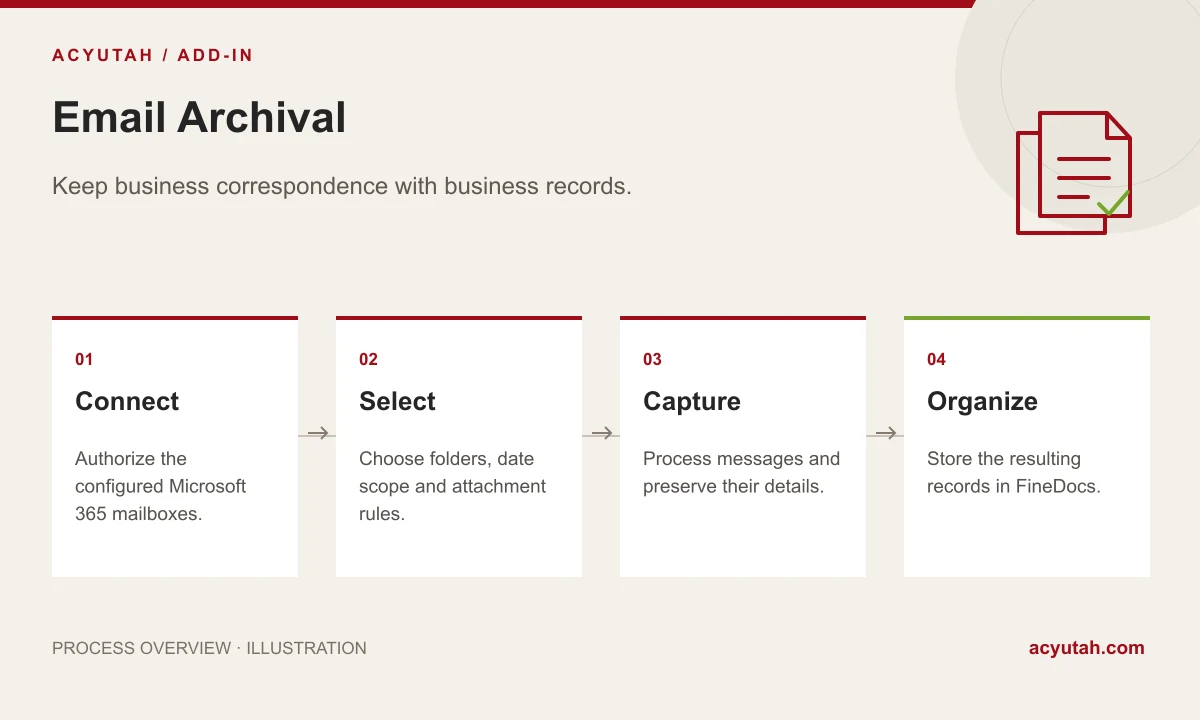
Email Archival in four steps
Connect
Authorize the configured Microsoft 365 mailboxes.
Select
Choose folders, date scope and attachment rules.
Capture
Process messages and preserve their details.
Organize
Store the resulting records in FineDocs.
Example: retaining supplier correspondence
A business can define the employee mailboxes and folders relevant to supplier communications, then collect messages within the agreed period. The resulting records retain the message context and configured attachment handling. Access to the archive should follow the organization’s repository permissions and employee-information policy. A sample collection confirms what is captured before a broader schedule is enabled.
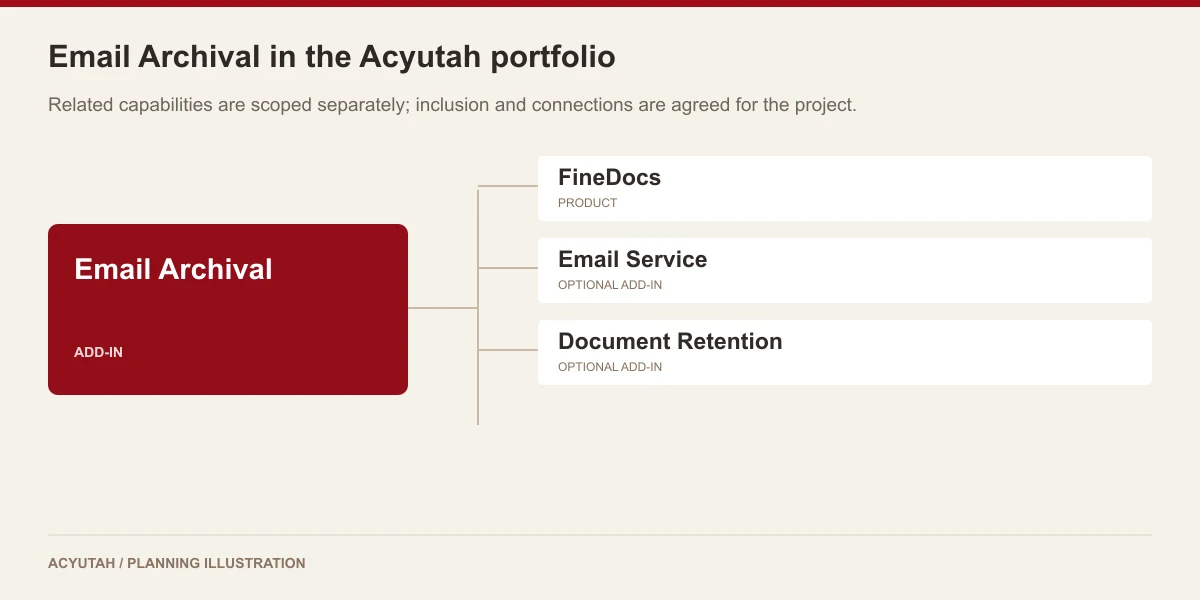
How Email Archival fits your Acyutah solution
Email Archival brings messages into the DMS. Email Service sends operational notifications such as workflow reminders. Document Retention Policy addresses the lifecycle of stored records. These are distinct add-ins and should be scoped separately.
Evaluating email archiving for document management with your team
Scope email archiving for document management around the correspondence your team needs to retain. Select an authorized test mailbox and a small date range containing messages with and without attachments. Compare the message context and attachments with the records available in FineDocs after capture. Repeat processing to review duplicate handling and check a message outside the selected scope. This creates a clear acceptance exercise for email archiving for document management, with mailbox access and repository access reviewed together before the collection is broadened.
For mailbox-access scope and permissions, consult Microsoft Graph mail API overview.
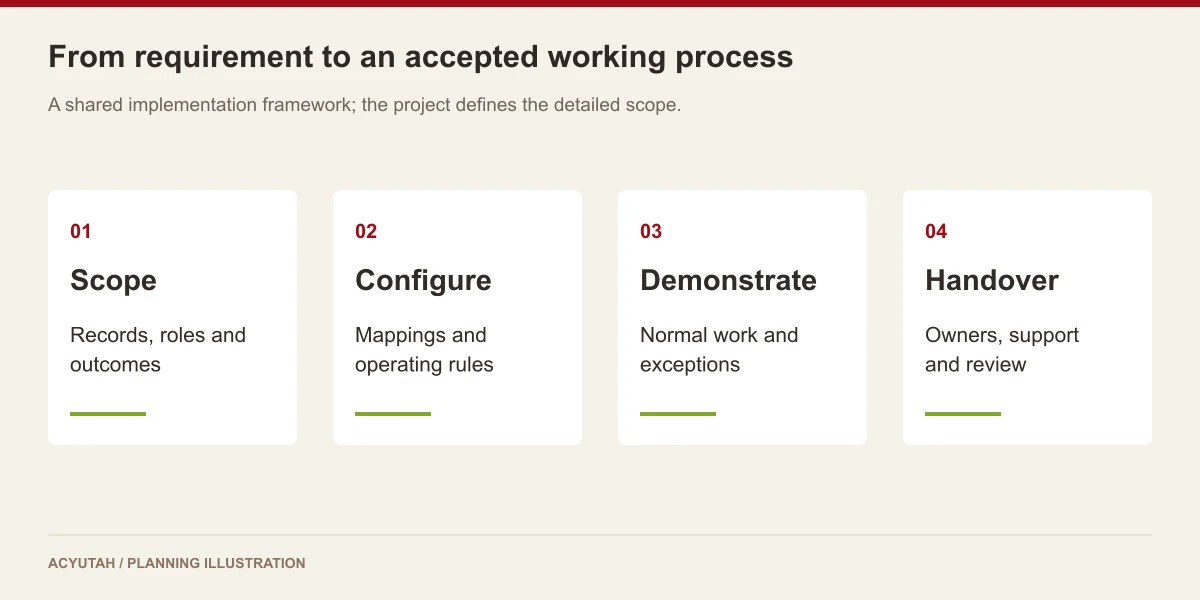
Plan your implementation
Identify the Microsoft 365 tenant, authorized mailboxes, folder names, collection dates, attachment policy and DMS destination. Agree who can administer collection and who may access the archived records. Confirm storage, monitoring and the response to failed processing with the implementation team.
Discuss the release, enabled modules and support responsibilities with our implementation team. The product demonstration should reflect the records, users and exceptions that matter to your organization.
Who uses email archiving for document management?
Business record owners
Email archiving for document management starts with a business decision about which correspondence belongs in the repository. Record owners identify relevant employee mailboxes, folders and date ranges, then define the context needed for later retrieval. A supplier discussion or customer exchange may have continuing value, but the collection scope should be explicit. The owner also decides which teams should have access to the archived information.
Mail administrators
Mail administrators enable email archiving for document management through approved mailbox access and the required Microsoft Graph configuration. They should review the accounts and folders in scope, the authorization arrangement and operational ownership. A test mailbox is useful for confirming behavior before a wider collection begins. Changes to mailbox access or authentication need a support route that includes both the mail and application teams.
Repository administrators
Repository administrators connect email archiving for document management with the destination and permissions in FineDocs. They review how message context and attachments become available to authorized users. The acceptance exercise should include retrieval, duplicate handling and any attachment limits. A successful collection process also needs someone responsible for checking exceptions and answering a business user’s question about an apparently missing exchange.
Email archiving for document management in a working scenario
Consider a team that needs supplier correspondence alongside other business records. Select an approved test mailbox containing a short exchange, an attachment-bearing message and a message outside the intended date range. Email archiving for document management should first establish the collection boundary: which folders and dates are included, and who has authorized their use. This boundary gives the team a concrete basis for checking the outcome without treating every available mailbox item as automatically in scope.
Run the configured collection and compare the result with the selected messages. Review the sender, recipient, subject, date and available message-body context, then check the treatment of attachments. Email archiving for document management should preserve the information the business needs to understand the exchange later. Include a message with a larger attachment so the team can confirm the configured size behavior and decide how an exception will be handled operationally.
Repeat the collection for the same sample and inspect duplicate handling, then retrieve an archived message using the agreed repository context. Review access with a colleague who is allowed to use the records and another role outside that scope. Email archiving for document management connects mailbox capture with document governance; it does not remove the need to define repository access, retention requirements or the separate responsibilities for mailbox backup and recovery.
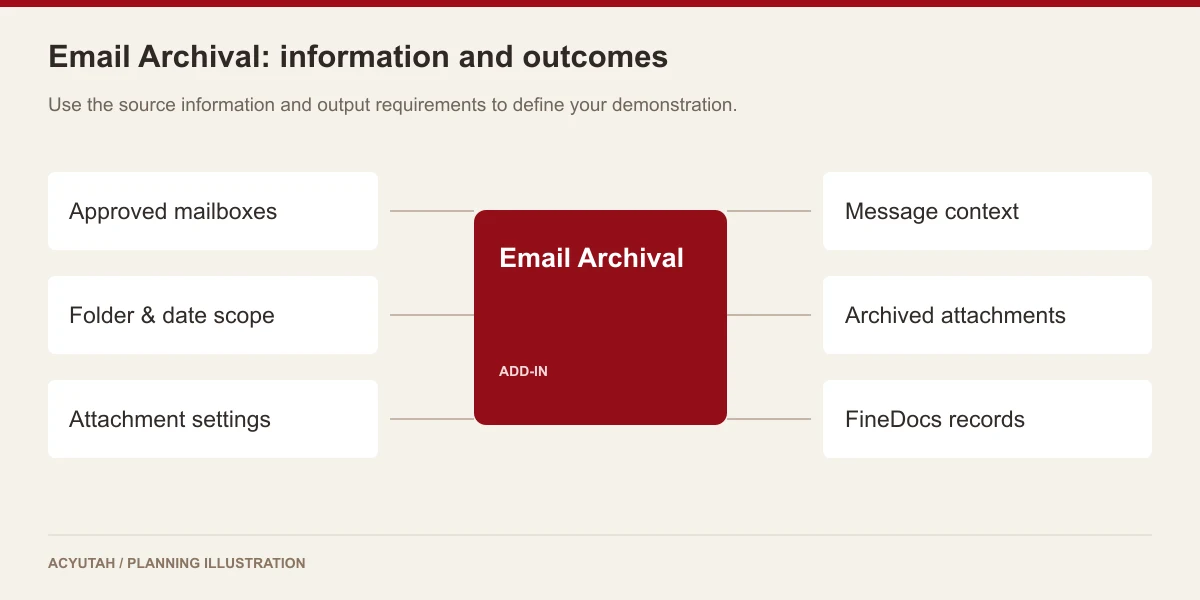
6 acceptance checks for email archiving for document management
1. Authorized scope
List the test accounts, folders and date range before collection. Compare the processed messages with that list, including a message deliberately outside the scope, and review the result with the record owner.
2. Message context
Open a captured exchange and compare its available headers and body context with the original. Confirm that an authorized repository user can understand which business discussion the archived item represents.
3. Attachment handling
Test messages with and without attachments and a sample near the configured size boundary. Agree how attachments are represented and what the support team does when an item cannot be processed as expected.
4. Repeated processing
Run the same sample again and review the message-identifier duplicate checks. Include any relevant mailbox movement scenario in the implementation discussion rather than assuming identifiers behave identically after every change.
5. Repository access
Review the destination and permissions with representative user roles. Mailbox collection authorization and access to archived content are separate decisions that need explicit business ownership.
6. Operational follow-up
Agree who reviews the background service and processing exceptions. Define the evidence needed to investigate a missing message without exposing mailbox access or private correspondence to unrelated users.
Prepare your email archiving for document management rollout
Pilot email archiving for document management with a small, approved collection and clear acceptance records. Confirm Microsoft Graph access, the selected mailbox folders, destination permissions and attachment settings before broadening the scope. Train the application administrator and record owner together so both understand what the service collects and how the resulting records are used in FineDocs.
After launch, review changes to employee accounts, mail permissions and collection requirements. Email archiving for document management needs a maintained scope and a practical exception process, especially when a mailbox or authorization arrangement changes. Treat retention, backup and recovery as explicit requirements with their own owners. If policy-driven lifecycle handling is required in the repository, include the separate Document Retention Policy add-in in the solution discussion.
Email Archival: frequently asked questions
Does it support every email provider?
Email Archival connects through Microsoft Graph. Support for another provider or authentication method must be confirmed for the proposed solution.
Can attachments be included?
Attachment processing and size settings are available. The configured collection policy determines the behavior; test the files your team exchanges.
Is this the same as Email Service?
No. Email Archival captures correspondence into FineDocs. Email Service handles outbound operational notifications.
Does this replace a complete email backup system?
It is a document-management archival workflow. Mailbox backup, disaster recovery and restoration requirements need a separate technical assessment.
What is the best first use case for email archiving for document management?
Choose a defined correspondence collection with a business owner, approved mailbox access and a clear retrieval need. A bounded supplier or operational exchange is easier to evaluate than an unrestricted mailbox collection. Demonstrate message context, attachments, repeated processing and repository access before expanding the scope.
How is email archiving for document management different from workflow email?
Email Archival brings configured mailbox content into FineDocs. Email Service sends operational reminders and escalation messages. One addresses incoming correspondence as records; the other draws attention to activities. A project may need both, but each has different access, configuration and support requirements.
See how Email Archival fits your work.
Share your process, document types and user needs with Acyutah.