
Email Service: Workflow email notifications
Bring pending work back to the right person’s attention.
Email Service provides workflow email notifications for configured Acyutah business processes. Use reminders and escalation messages to bring outstanding activities and HelpDesk events to the attention of the people responsible for acting on them.

A notification should point to a task that needs attention.
Teams need relevant prompts, not another undifferentiated stream of messages. Email Service reads the configured operational data and prepares messages around the current work. The service distinguishes reminder and escalation modes, and the service also includes HelpDesk escalation processing. Recipients, schedules and message behavior should reflect the organization’s responsibility model.
Workflow email notifications: 6 practical benefits
Workflow reminders
Send configured reminders about outstanding process activity. Messages can include the process context and pending responsibility needed for a user to understand the prompt.
Escalation messages
Process workflow escalation information separately from ordinary reminders. Agree the escalation triggers and recipients with the business owner.
HelpDesk escalation
Use the service’s HelpDesk escalation processing with the relevant portal configuration. This connects notification behavior to support-ticket responsibilities.
Grouped notification handling
The software includes grouped and individual workflow email handling. Choose the behavior appropriate to the process and the way recipients review pending work.
Scheduled background processing
Configure service intervals or scheduled processing so notification work runs in the background. The mail service and the source application must both be available.
Mail configuration and logging
Configure the outbound mail environment and review service logs when investigating delivery problems. Server acceptance, mailbox delivery and a recipient’s response are different outcomes.
Email Service in four steps
Identify
Read the configured pending work.
Prepare
Build the reminder or escalation message.
Send
Use the configured mail service.
Monitor
Review processing and delivery issues.
Example: following up on an overdue workflow activity
A process owner defines when an outstanding task warrants a reminder and when it should be escalated. Email Service processes the configured workflow information and prepares messages for the relevant recipients. The business can then adjust the schedule and grouping to make follow-up useful without relying on manual chasing. HelpDesk escalation requirements can be configured alongside their own ticket rules.
How Email Service fits your Acyutah solution
Email Service is an add-in. It complements FineFlow BPM and applicable portal workflows. It is different from Email Archival, which collects mailbox content into FineDocs; configuring one service does not automatically configure the other.
Evaluating workflow email notifications with your team
Review workflow email notifications with a small set of representative activities. Include an assigned task, an overdue item and a HelpDesk case that meets the agreed escalation rule. Check the intended recipient, message context and schedule, then confirm the delivery result in the approved mail environment. Test what happens after the underlying work changes status. This helps the business owner decide which workflow email notifications are useful, who should receive them and who will investigate delivery failures without turning every event into another email.
If your organization uses Microsoft 365, assess the delivery setup against Microsoft guidance on application email delivery.
Plan your implementation
Agree the sender configuration, recipients, triggering rules, schedule, templates and escalation responsibilities. Test normal reminders, grouped messages, missing addresses and failed delivery. Confirm the organization’s mail-server requirements and operational ownership before enabling a production schedule.
Discuss the release, enabled modules and support responsibilities with our implementation team. The product demonstration should reflect the records, users and exceptions that matter to your organization.
Who uses workflow email notifications?
Process owners
Workflow email notifications are useful when the process owner can explain why a message is needed and what the recipient should do. Begin with the activity or exception that needs attention, then identify the relevant person or group. A reminder should connect to a defined responsibility. Avoid treating every available event as a reason to send another message without an operational purpose.
Participants and escalation recipients
Participants receive workflow email notifications in the context of their assigned work. Escalation recipients may need a different view of the same situation, particularly when the responsible team needs help resolving an outstanding item. Review the message context and recipient selection with both groups. They should understand the underlying task and the action expected, rather than having to infer it from an unexplained subject line.
Application and mail administrators
Administrators support workflow email notifications across the application and mail environments. Application configuration determines the operational case and message preparation; the approved email infrastructure handles delivery. Agree who investigates a missing message, a recipient problem or a delivery failure. This division of responsibility helps the support team trace an issue without assuming that a generated notification necessarily reached the intended inbox.
Workflow email notifications in a working scenario
Consider a business process containing an outstanding activity that needs a participant’s attention. Define the reminder condition and the intended recipient before demonstrating the Email Service configuration. Workflow email notifications should be reviewed with sample work at different stages, including an item that does not meet the reminder condition. This establishes whether the message is connected to the intended operational situation and gives the process owner a meaningful acceptance case.
Next, review the applicable grouped and individual message behavior. The recipient should be able to understand which work requires attention from the message context and the application’s status. Include an escalation example where the configured process calls for another person or team to be notified. Workflow email notifications are part of the support for a process; the activity itself remains in the business application and must still be completed by the responsible participant.
Finally, follow a HelpDesk escalation case if that portal is included in the solution. Confirm the ticket rule, the relevant recipient and the approved mail setup, then review the handling of a delivery problem. Workflow email notifications should be accepted as a complete operational path from the qualifying work to the intended message outcome. This includes clear ownership of the service schedule, application rules and email infrastructure rather than relying on a successful one-off test.
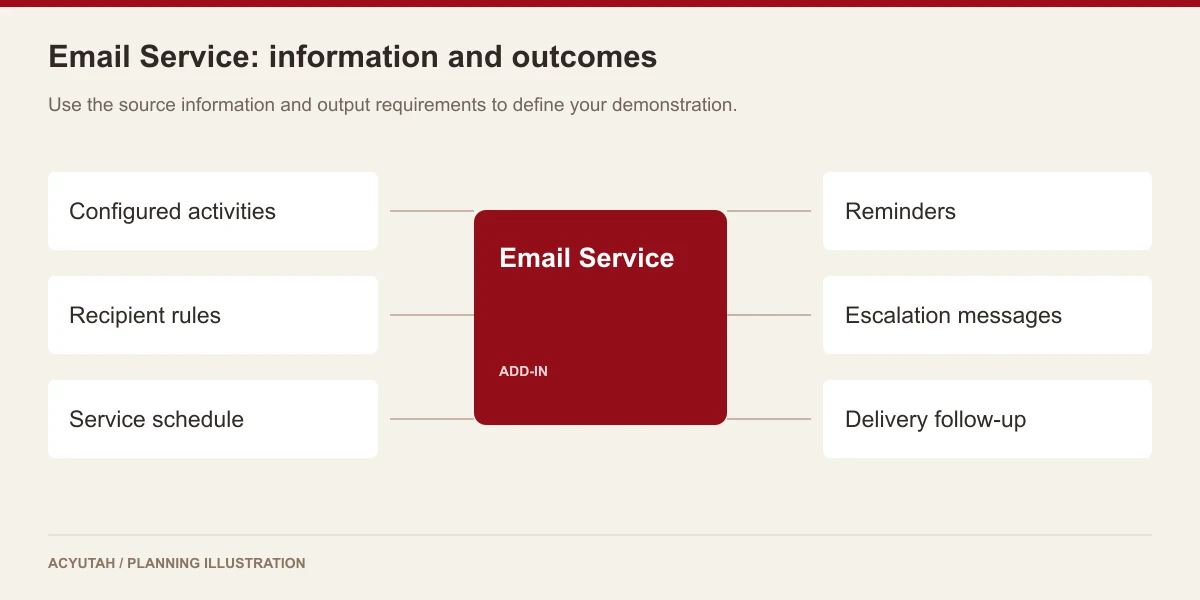
6 acceptance checks for workflow email notifications
1. Qualifying work
Compare an activity that should generate a reminder with one that should not. Agree the relevant condition with the process owner and verify that the demonstration uses the intended operational data.
2. Recipient selection
Review the participant, group or escalation recipient for each test case. Include a changed responsibility or missing address in the discussion so the support procedure covers more than the normal path.
3. Message context
Inspect the information included in a sample message and confirm that the recipient understands the expected action. Review grouped and individual messages where those modes are part of the configuration.
4. Schedule
Agree when the service processes the configured work and how that timing fits the business process. Test the proposed schedule using representative activities rather than assuming an immediate message for every event.
5. HelpDesk escalation
When the portal is included, demonstrate the connection between the ticket rule and its escalation message. Confirm the relevant categories, responsibilities and service configuration with the support-process owner.
6. Delivery support
Validate the approved mail connection and investigate a controlled delivery exception. Identify the application evidence and mail-administration information needed to establish where a missing notification should be investigated.
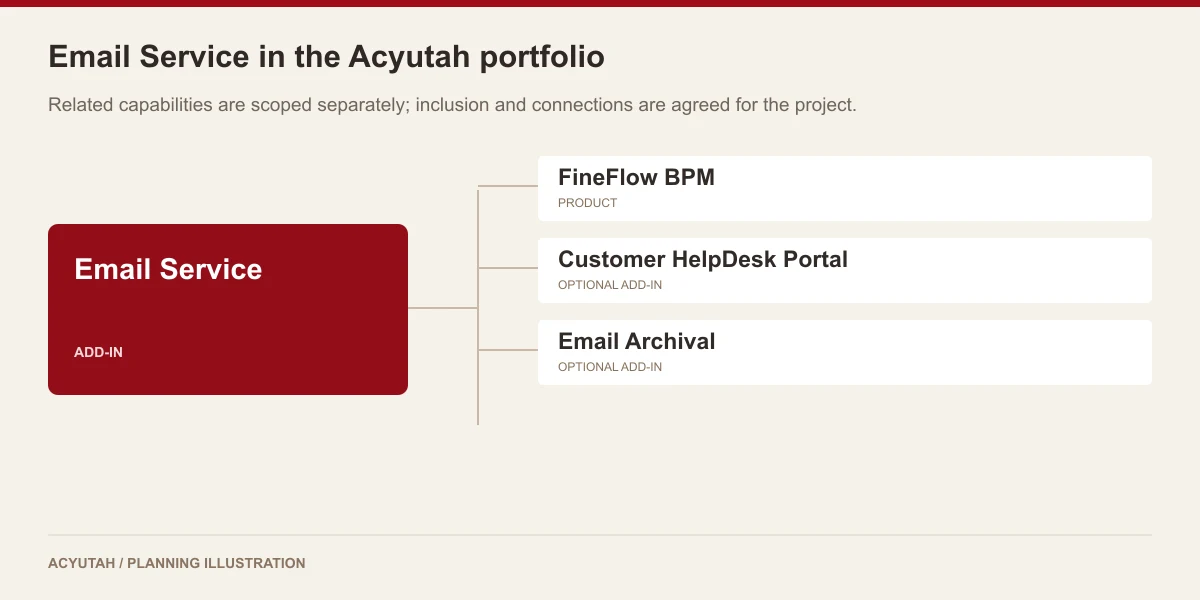
Prepare your workflow email notifications rollout
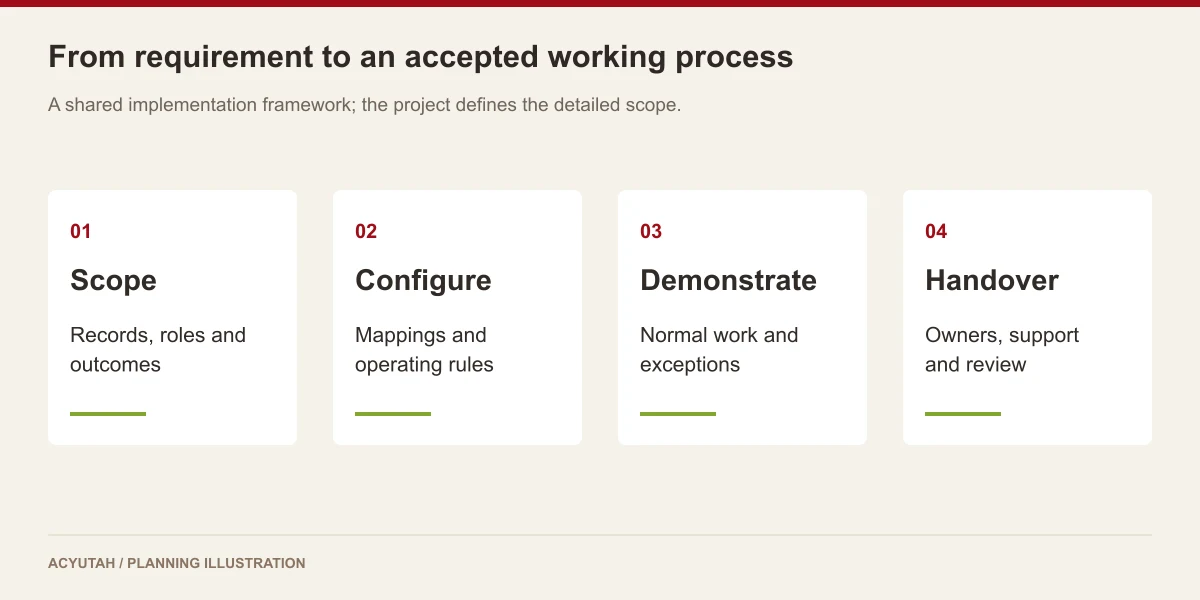
Introduce workflow email notifications for a small set of agreed cases first. Define each case, recipient and expected action, then review the message with the people who will receive it. Coordinate application setup with the mail administrator before production use. Training should explain what a notification means and where the recipient completes the underlying activity.
Maintain workflow email notifications when process ownership, recipient groups or mail arrangements change. Review whether reminders are useful to the people receiving them and whether escalation responsibilities remain current. Keep a support procedure for delivery failures and service interruptions. Email Service and Email Archival should remain separately scoped: notification delivery and collection of mailbox records solve different operational requirements.
Email Service: frequently asked questions
Does Email Service archive employee emails?
No. Employee mailbox capture is the purpose of the separate Email Archival add-in.
Can it notify workflow participants?
Yes. The service supports workflow reminder and escalation handling, with grouped and individual message paths.
Can it support HelpDesk escalations?
HelpDesk escalation processing is included in the service implementation. It must be configured with the relevant portal and ticket rules.
Does sending a reminder complete the task?
No. A notification draws attention to work; the responsible person still performs the required action in the application.
Which workflow email notifications should we introduce first?
Start with an agreed reminder or escalation that addresses a clear operational problem. Define the qualifying work, recipient, timing and expected action. Demonstrate both a qualifying and non-qualifying example, then broaden the configuration once the process owner and mail administrator have accepted the behavior.
How should we test workflow email notifications?
Use representative activities, confirmed recipient addresses and the approved mail environment. Check the generated message and its delivery outcome, then test an exception. Include grouped messages or HelpDesk escalation only where they belong in the agreed scope, with a named owner for each configuration.
See how Email Service fits your work.
Share your process, document types and user needs with Acyutah.